The Capture Tool lets you create image snippets from content on your paper tablet and paste them into your notes. Use it to capture text, diagrams, charts, handwritten content, or other visuals without having to recreate them manually.
Draw around the content you want to capture in any shape. The selected area is copied to your clipboard as an image rather than individual strokes, ready to paste and reposition in your notes.
The Capture Tool is available without a Connect subscription.
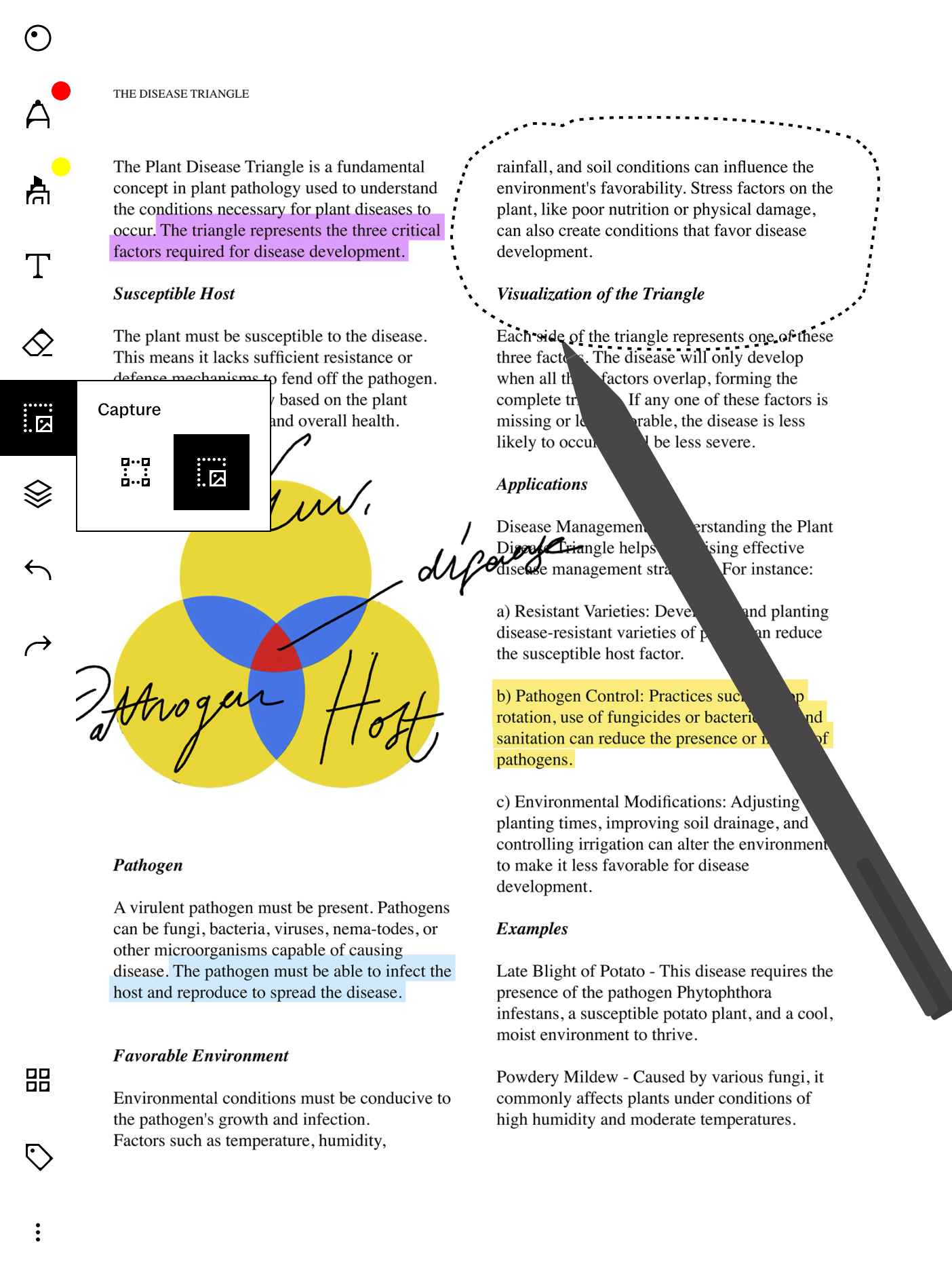
With the Capture Tool, you can:
- Create image snippets: Turn selected content on your paper tablet into an image.
- Capture different types of content: Create images from text, handwriting, diagrams, charts, and other visual content.
- Choose any shape: Draw freely around the exact area you want to capture.
- Paste captures into your notes: Add the captured image to another location in your notes.
- Move captures between notebooks: Reuse captured content across different notebooks.
- Capture reference material: Bring useful content from PDFs and other documents into your notes as images.
- Use it without Connect: The Capture Tool doesn't require a Connect subscription.
Capture content
- Tap the Selection Tool in the toolbar to open the foldout menu.
- Select Capture.
- Draw a loop around the content you want to capture.
- When you complete the selection, the content is automatically copied to your clipboard as an image.
- Tap anywhere on the page with your Marker to paste the captured image.
The captured content is created as a single image, rather than individual editable strokes.
Capture content from a PDF
Use the Capture Tool to bring useful reference material from a PDF into your notes. For example, you can capture a diagram, chart, section of text, or other visual and paste it into a notebook.
Once captured, the selected content becomes an image. Text, handwriting, and other elements within the capture are no longer individually editable.
Move and reuse captures
Once pasted, captures can be selected and repositioned in your notes. You can also move or copy them between notebooks, making it easier to combine reference material with your own content.
Select and deselect a captured image
When a captured image is selected, tapping it with your Marker will interact with the image rather than draw on top of it.
To continue writing or drawing, tap outside the selected image to deselect it first. Once the image is deselected, you can continue using your Marker normally.
Limitations
- Captured content is created as a single image, so text, handwriting, and other elements within it can't be edited individually.
- The Capture Tool doesn't extract or convert captured content into editable text.
- When a captured image is selected, Marker input interacts with the image instead of drawing over it. Tap outside the image to deselect it before continuing to write or draw.