Type Folio brings new typing and editing options to your notes. Type longer blocks of text with Type Folio, take handwritten notes and annotate typed text with your Marker, and capture new ideas using our mobile and desktop apps.
Be sure to update your reMarkable, desktop app, and mobile app to use these new features.
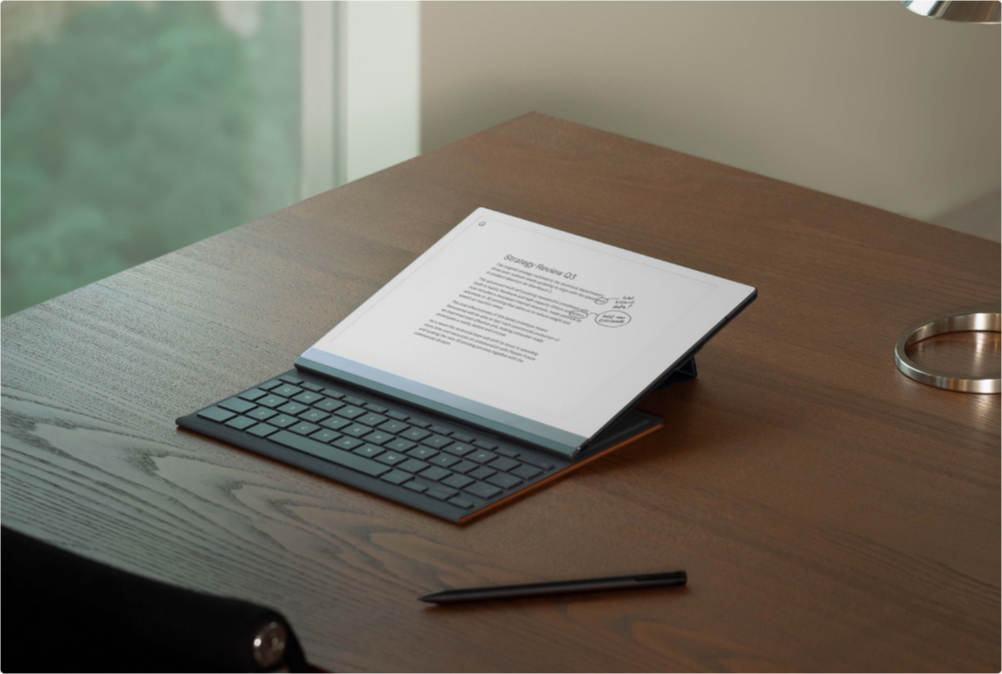
Combining handwritten notes and typed text
When you open the Type Folio, your reMarkable will automatically rotate the display, letting you switch between handwriting and typing. Notes or highlights you make with the Marker will move dynamically, following the typed text that they’re attached to on the page when editing.
Here’s how to open your Type Folio:
Open the front cover of your Type Folio all the way around so it touches the back cover. Turn the paper tablet, so the spine faces toward you. Gently press the tabs on the sides of your Type Folio and lift and back to reveal the keyboard.
Typing in notebooks
Here’s how to type in your notebooks:
- Attach your Type Folio to your reMarkable.
- Open a notebook.
- Start typing with your Type Folio.
Tap the formatting menu ( ) to change the font size or add bullet points. You can also bring up the shortcuts menu by holding alt (Mac) or ctrl (Windows PC) on your Type Folio for three seconds.
Taking notes in PDFs and ebooks
When reading PDFs or ebooks, you can add a blank note page for typed text or handwritten notes:
- Open a PDF or EPUB.
- Tap the Document settings icon in the toolbar.
- To add a new blank page, tap New note page. It will appear after the page you were viewing.
- Start typing with your Type Folio, or tap the formatting menu () to adjust the text size or add bullet points.
Read more about adding or deleting note pages
Taking notes in our desktop and mobile apps
Connect subscribers can take notes on reMarkable using the desktop and mobile apps. In the desktop app, you'll be able to:
- Type and edit in notebooks
- Create new notebooks or quick sheets
- Add pages to notebooks
- Export, delete, and organize notebooks
- Add tags to notebooks, PDFs, and ebooks
Use the mobile app to take notes, edit typed text, and create new notebooks and quick sheets, or add pages to existing documents — perfect for capturing an idea while you're on the go.
Read more about taking notes in the desktop app
Searching typed text
You can search your typed text by tapping the notebook options button in the toolbar, then Search. You can also search by tapping alt + F (Mac) or ctrl + F (Windows).
Things to know when using typed text
- You can’t use the selection tool with typed text. To move typed text in a notebook, use the on-screen keyboard (tap enter or backspace to move your text) or your Type Folio to edit.
- You can also cut, copy and paste typed text with gestures. Double-tap to select a word, triple-tap to select a paragraph, quadruple-tap to select all the text. Paste in a new location by tapping the cursor, then the paste icon. Learn how to move text using gestures.
- Some templates aren’t designed to work with typed text, and some lines won’t always align with the text.
To learn more about combining handwriting and typing, visit our learning and inspiration hub, Using reMarkable.