Use Convert to Notebook to turn Microsoft Word documents (.docx), Google Docs, and plain text files (.txt) into editable notebooks on your reMarkable paper tablet.
Once converted, you can edit text, add space for notes, annotate, and develop your ideas directly on your paper tablet.
Convert to Notebook is currently available in beta for customers with an active Connect subscription and software version 3.25 or newer.
Before you begin
To use Convert to Notebook, you'll need:
- An active Connect subscription.
- Software version 3.25 or newer.
- A supported document: Word (.docx), Google Docs, or plain text (.txt).
- Access to my.remarkable.com or a supported storage integration on your paper tablet.
If your software is outdated, see How to update your reMarkable and apps.
Which file types can I convert?
Note: Converted notebooks retain text, but not all formatting from the original document.
How to convert a document into a notebook
You can import documents through http://my.remarkable.com or directly from a connected cloud storage service on your paper tablet.
Use this method to import Word (.docx) or plain text (.txt) files from your computer.
- Go to my.remarkable.com and sign in to your reMarkable account.
- Select My Files from the menu in the upper-left corner.
- Drag your document into the file list, or click Import and select the file.
- The document is converted into a new notebook in your library.
- Open the notebook on your reMarkable paper tablet to read or edit it.
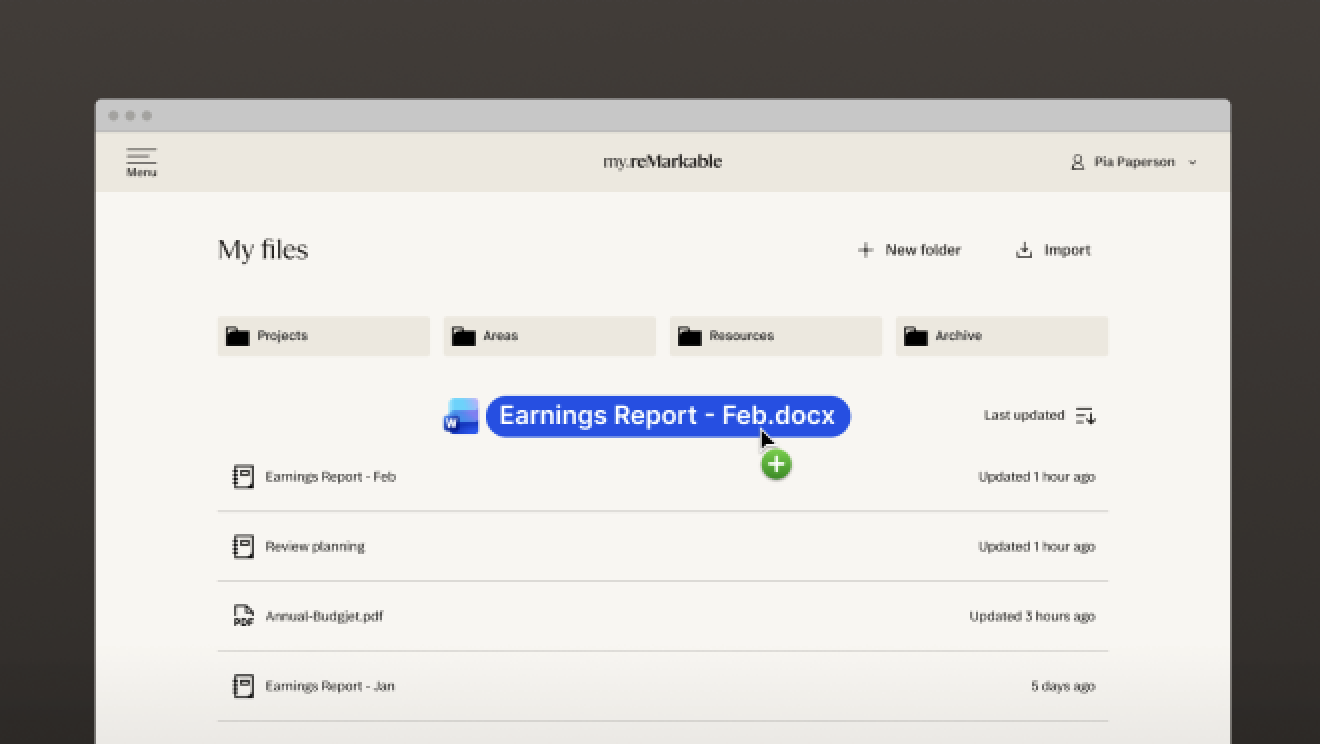
You can now add notes, edit text, and continue working on your document.
Option 2: Import from cloud storage on your paper tablet
You can also convert documents using a supported storage integration, such as Google Drive, Dropbox, or OneDrive.
- On your paper tablet, open the menu in the upper-left corner.
- Select Import files.
- Choose your connected storage integration.
- Browse to the document you want to import.
- Long-press the file to download and import it as an editable notebook.
- Open the new notebook to start editing.
This method lets you import documents directly from your connected cloud storage without first downloading them to your computer.
You can import a Google Doc directly from your connected cloud storage or export it as a Word document.
Import directly from storage integrations from your paper tablet
- Open the menu on your reMarkable paper tablet.
- Select Import files.
- Open your connected storage integration.
- Find the Google Doc you want to convert.
- Long-press the file to import it as an editable notebook.
- Open your Google Doc on your computer.
- Download it as a Microsoft Word document (.docx).
- Go to my.remarkable.com.
- Open My Files.
- Import the .docx file.
- Open the converted notebook on your paper tablet.
What happens to my document after conversion?
When you convert a document, reMarkable creates an editable notebook.
You can:
- Edit the imported text.
- Add space for handwritten notes.
- Annotate and review the content.
- Continue developing your ideas directly on your paper tablet.
Will my document keep its original formatting?
No. Convert to Notebook only retains formatting supported by reMarkable notebooks.
|
Original content
|
After conversion
|
|---|
|
Text
|
Retained
|
|
Tables
|
Table formatting removed
|
|
Columns
|
Column formatting removed
|
|
Margins
|
Original margins removed
|
Important: The converted notebook may look different from the original document because unsupported formatting is removed.
If you still need help
If you're unable to convert a supported document into a notebook, contact reMarkable Support.
Include:
- Your reMarkable model and software version.
- The file type you're trying to convert.
- Whether you're importing through my.remarkable.com or a storage integration.
- Any error messages you receive.
- The troubleshooting steps you've already tried.