Here's how:
1. On your paper tablet, open the notebook with the notes you’d like to share.
2. In the Toolbar, tap Share.
3. Tap Convert and share.
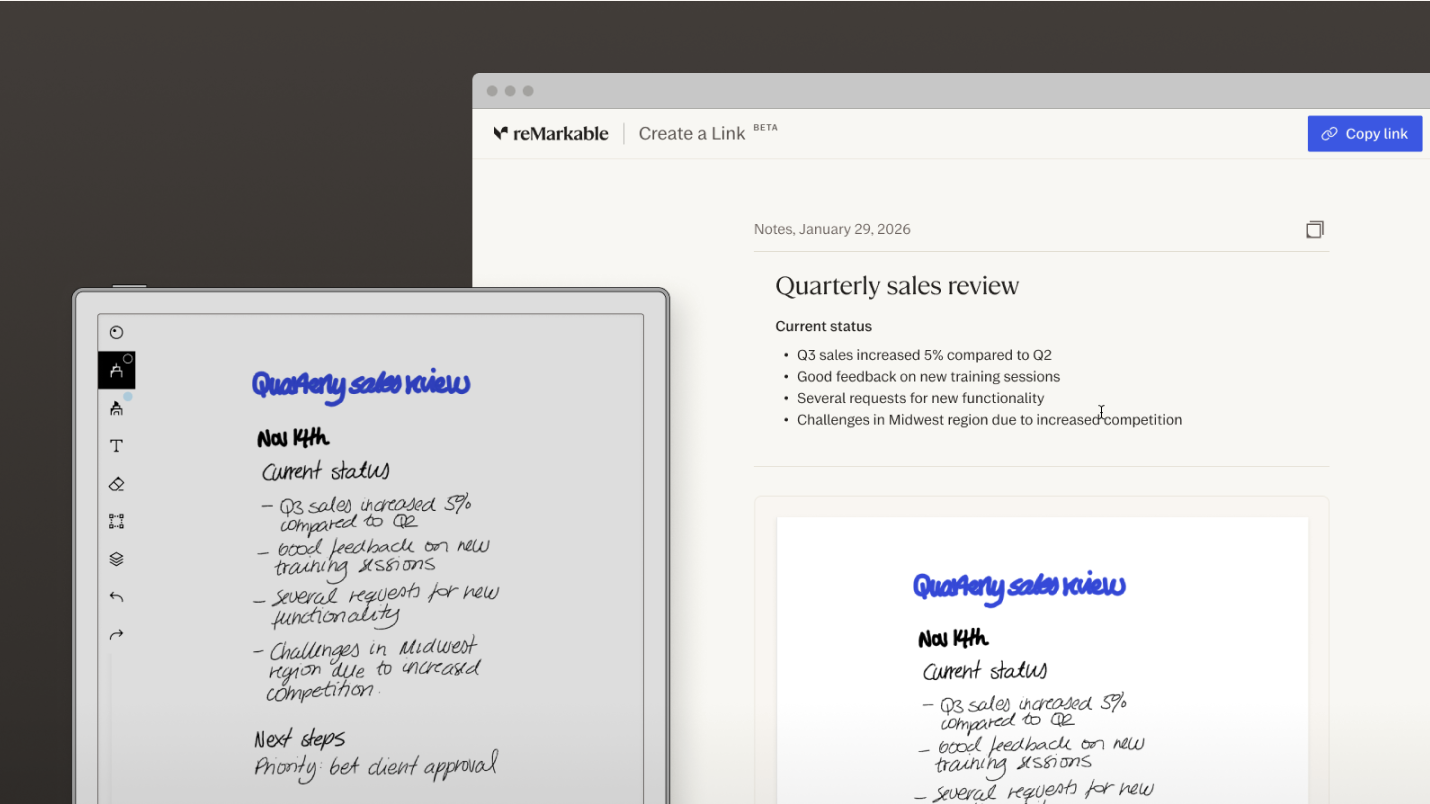
4. Tap Open QR-code to access the link, or open your inbox on your computer to find it. An email with a link to your notes, converted to typed text, will be sent to you. There, you'll also find an image of your notes, in case you've included sketches or illustrations.
5. To edit the webnote, log in with your reMarkable account.
If you'd like to save your notes to your computer, click the download icon in the upper-right corner, which will provide a .docx file. Keep in mind that further changes made from your paper tablet won’t update your webnote.
Use this feature to quickly share your handwritten work. Colleagues can then view your converted text and sketches on any device, or download the notes as a .docx file. Perfect for sharing meeting notes.
FAQs
Can anyone view my webnotes?
Webnotes are public and can be viewed by anyone with access to the URL.
Who can edit the text on the shared webnote?
Only the owner of the link can edit the text. You must be logged into your reMarkable account in the browser to make edits. Anyone with the link can view or download a copy of the page.
Does the link expire?
Yes, by default, the link expires after six months. To change the date, log in and select "Link expires..." from the three-button menu in the upper-right corner.