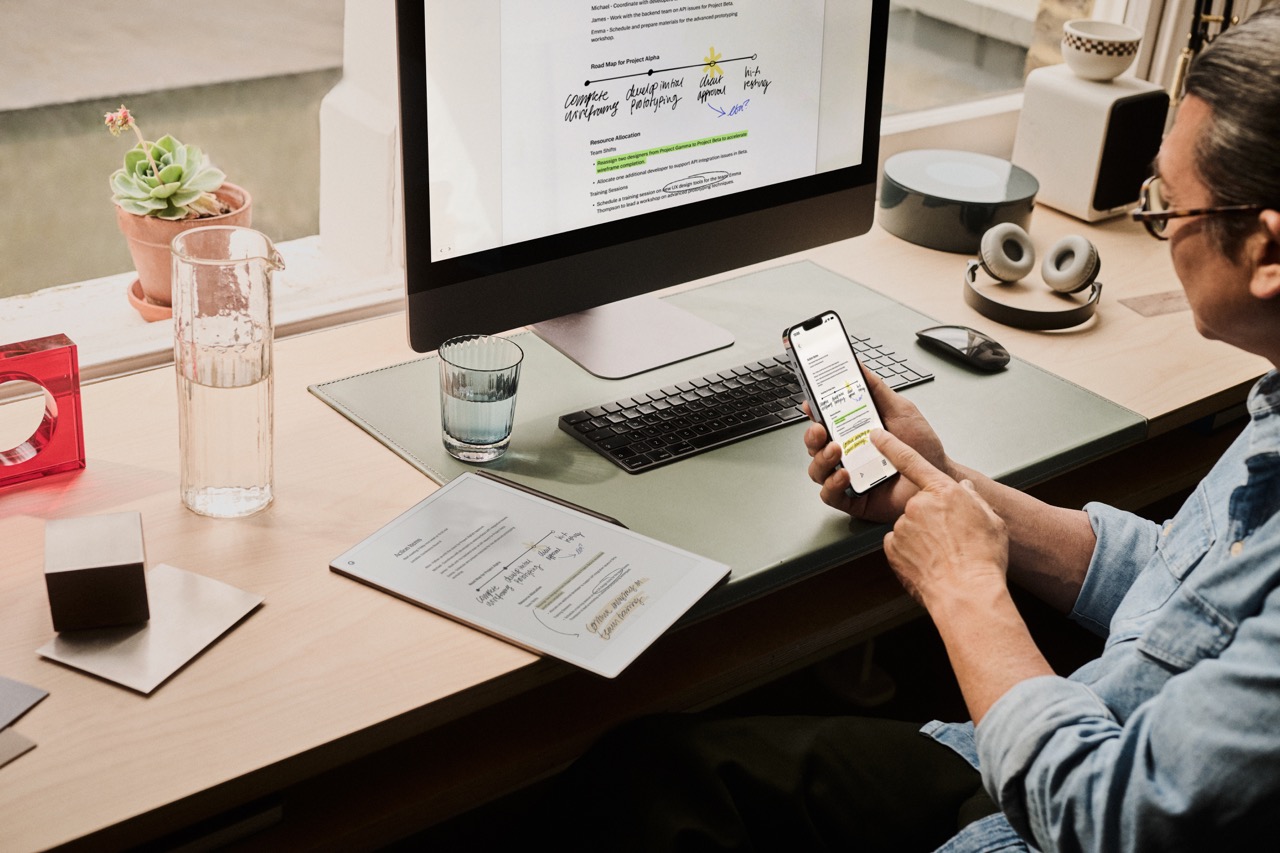
With reMarkable’s mobile app you can view, organize, and import files to your paper tablet.
Read ahead to learn how you can view, organize, and import files to your paper tablet with reMarkable’s mobile app
Connect subscribers can also create and edit in the app - perfect for capturing an idea while you're on the go. The app is available in the App Store and Google Play.
Set up the mobile app
Before you begin
Check that your iOS/Android version is supported in our technical requirements list.
To download, pair, and use the mobile app, you will need:
How to set up
- Download reMarkable mobile from the App Store or Google Play.
- Open the app and log in to get a one-time verification code. You'll be redirected to a window where you can log in to your reMarkable account.
- Enter the verification code in your mobile app and tap Pair the app.
Take and edit notes
With a Connect subscription, you can type and edit notes on your phone:
- In the app, open a notebook.
- Tap the page to bring up the on-screen keyboard and type.
In the toolbar, tap to change the paragraph style, add formatting, or add bullet points or checkboxes. To cut, copy, paste, or select text, double-tap on a word and select your preferred option.
Changes you make in the mobile app will sync to your paper tablet and desktop app when you've paired them with your reMarkable account.
Import files
iPhone
- Open a PDF or EPUB file
- Tap the share icon in the Apple menu
- Choose Import with reMarkable

Android
Files can be imported with the Android app, either by importing in-app, or by sharing the file to the app.
From the app:
- Tap the main menu
- Tap Import
- Choose your downloaded PDF or EPUB file
- Tap Accept to agree to give the app access to your files
From a file:
- Open a PDF or EPUB
- Tap the Share icon
- Choose Import with reMarkable
Organize files
Add pages to notebooks
- In the app, open a notebook.
- Tap the Page overview icon.
- Tap Add page at the bottom of the display. A new page will appear after the one you’re currently viewing.
Add new notebooks and folders
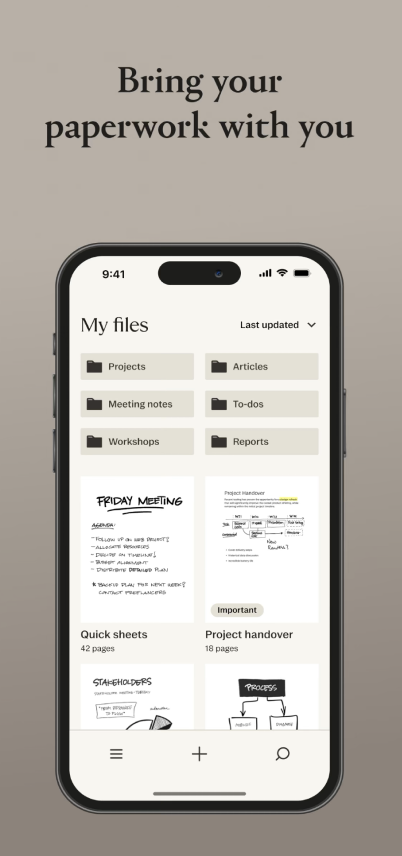
- Tap the plus icon at the bottom of the display.
- Tap Quick sheets, Notebook, or Folder.
- Type the name of your new folder or notebook, then tap Create.
Troubleshooting
If your app is not working as intended, you should:
- Uninstall and reinstall the app, and make sure it’s on the latest software version.
- Clear the app cache and/or storage or force stop it before relaunching (Settings > Apps > reMarkable).
- Ensure the available memory is sufficient and permissions are granted.
- Check for updates for your iOS/Android version.
Should the issue you’ve encountered persist, or you're unsure how to proceed, contact our support team so we can help. Having a brief explanation of the situation and the steps you’ve already taken ready is always helpful, along with:
- Your phone’s model and Android/iOS version.
- Whether this is a fully private phone or a phone with a business profile.
- Whether it is connected to an enterprise network, home Wi-Fi, or using mobile data.