In this article, you’ll learn how to use the on-screen keyboard or Type Folio to work with typed text on your reMarkable.
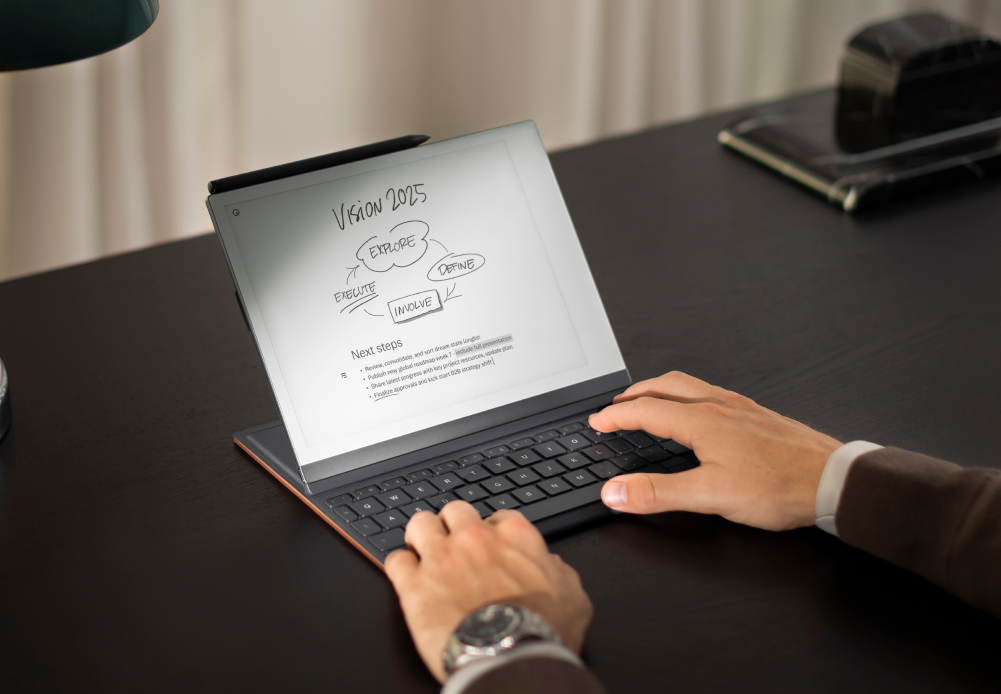
Typing in notebooks
Here’s how to use Type Folio to write in notebooks:
- Attach and unfold your Type Folio to your reMarkable.
- Open a notebook, or create a new one by tapping the plus icon on the My files page and then Notebook.
- Start typing on Type Folio.
You can bring up the keyboard shortcuts menu by holding alt (Mac) or ctrl (PC) on your Type Folio for three seconds, depending on which style of key combinations you chose during setup. Combine handwritten notes and typed text.
Using typed text without Type Folio
Here’s how to add typed text using the on-screen keyboard:
- In a notebook, tap the T icon in the toolbar.
- Tap Add text or Edit text
- Choose your preferred column width - narrow or wide.
- Use the on-screen keyboard to type.

Searching typed text
Search your typed text by tapping the Document settings button in the toolbar, then Search. On Type Folio, press ctrl + f or alt + f to search.

You can search the typed text within a page or whole notebook.
Selecting typed text
You can select typed text using gestures, or Type Folio.
Using gestures:
- double-tap to select a word,
- triple-tap to select a paragraph,
- and quadruple-tap to select all the text in a notebook.
Once you’ve selected text, drag the handles to adjust the amount of text selected.
Using your Marker, you can tap and hold where you’d like to start selecting text. Drag the Marker through typed text to select it. For text that spans multiple lines, tap, hold and drag a diagonal line with your Marker from the first to the last letter of the text you want to select.
Using Type Folio, hold shift and use the arrow keys to select text.
Copying, pasting, and moving text with the Type Folio
- Tap alt + C (Mac) or ctrl + C (Windows) to copy typed text in a notebook.
- Tap alt + V (Mac) or ctrl + V (Windows) to paste.
When your Type Folio is attached to your reMarkable, you can bring up the shortcuts overview by holding alt (Mac) or ctrl (Windows) for 3 seconds.
You can also copy and paste typed text using gestures (double-, triple-, quadruple-tap).
Formatting typed text
- Tap the formatting menu to change the paragraph style. You can select between title, subheading, and body text, and add bullet points and checkboxes.
- Tap or tick a checkbox to mark it as done, and your reMarkable will automatically cross out the typed text next to it.
- Once you’ve selected typed text, tap the buttons in the selection menu to cut, copy, or apply bold or italic formatting. On Type Folio, press ctrl + b or alt + b for bold text, and ctrl + i or alt + i for italic text.
Typing in the mobile and desktop apps
If you subscribe to Connect, you can type and edit notes in the mobile and desktop apps. You can also view your notes, reorganize notebooks and folders, copy, export individual pages, delete, add new pages to notebooks, and create notebooks from the apps.
Without a Connect subscription, you’ll have the option to view, organize, and export individual pages from notebooks and documents in the apps.
Copy and paste text using the desktop app
Here’s how to copy and paste text from a web page or document into a notebook:
- Copy (ctrl + C) the text you’d like to add to a notebook
- On your computer, enter the notebook in the desktop app.
- Paste the text (command + V on Mac or ctrl + V on Windows).
- Edit the text in the app or on your reMarkable.
Editing converted notes
When using the handwriting conversion feature, you can use your Type Folio or the on-screen keyboard to edit handwritten notes after converting them. Here’s how:
- Open a notebook.
- Tap Document settings in the toolbar.
- Tap Convert to text. The converted text will be added as a new page in your document (non-destructive, this preserves both your handwriting and the converted text).
- Edit with your Type Folio, or tap Text to use the on-screen keyboard.
You can also convert handwritten notes to typed text with the selection tool (destructive), or by going to page overview and selecting the pages you want to convert (non-destructive).
Converted notes can be moved into other documents. You can refine and upload them directly to your cloud storage services, and of course send by email.
Frequently asked questions
Can I change the width of the margins on the page?
Yes, you can change the margins for typed text by opening the Typed Text (T) menu in the toolbar and switching between wide and narrow column.
Can I edit typed text with the selection tool or eraser tool?
You can use the selection tool to convert handwritten notes to typed text, and select, move, cut, copy, and apply bold or italic formatting to typed text. The eraser can’t be used with typed text.
To learn more about typed text, visit our learning and inspiration hub, Using reMarkable.
Can I type in a PDF document?
You can type in a note page added to a PDF document (Document settings > Add note page) since continuing to add text on the PDF page is not currently available.