There’s a wide range of writing tools to choose from when creating content on your reMarkable. To access the tools and adjust the color or stroke thickness, tap the writing tools icon in the toolbar.
Writing and drawing in color
On reMarkable 1 and 2, all writing tools display in either black, gray, or white. However, when exporting your files, viewing them in our apps, or using Screen Share, the fineliner, marker, and ballpoint pen can display in blue or red ink as well.
In addition, the highlighter can export in pink, green, or yellow to make marking up documents easier. There’s also a gray option that overlaps for drawing and shading. With reMarkable Paper Pro, you can write, sketch, and draw in several colors: black, gray, white, blue, red, green, yellow, cyan, and magenta. Orange and pink are also available with selected tools.
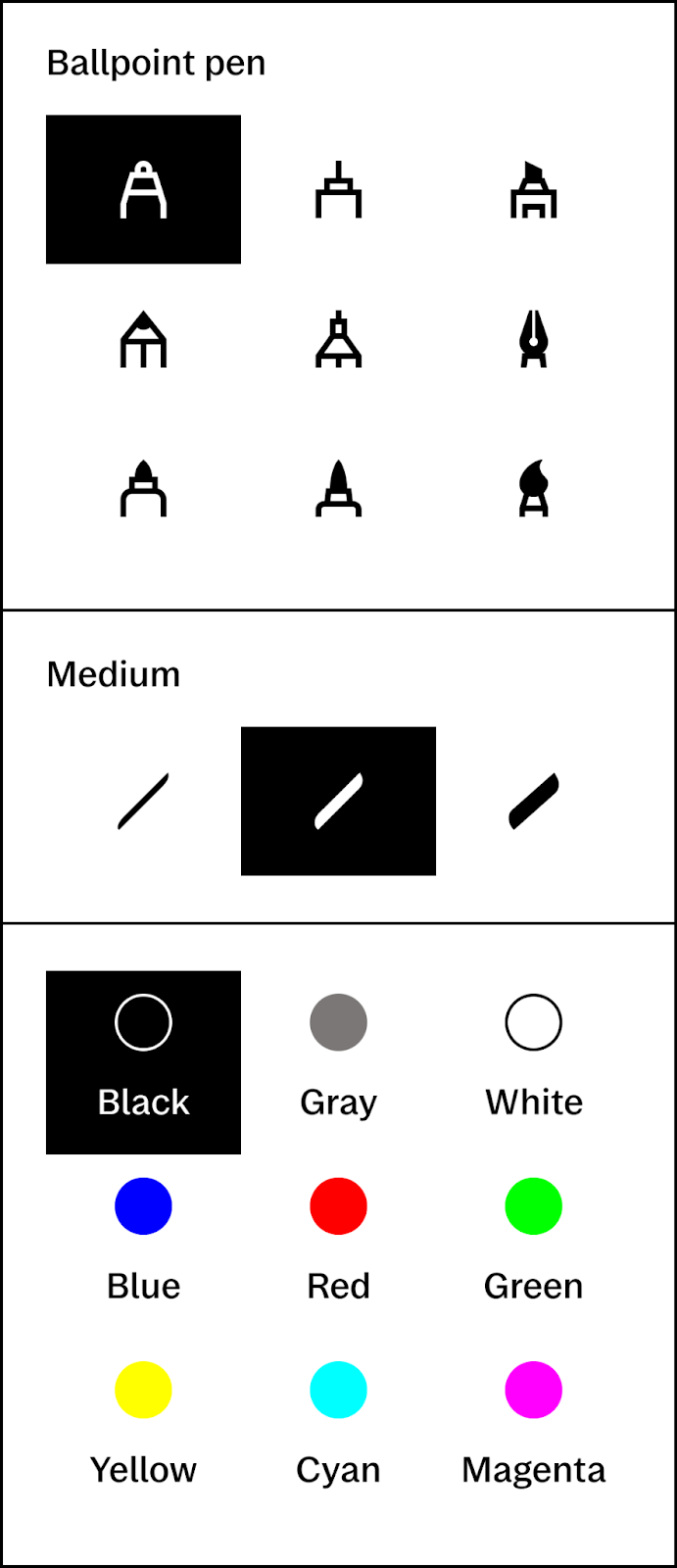
Your writing tool for a notebook will be memorized with the chosen color the next time you enter it, but new notebooks will always be set to default so that you can pick what suits your document best.
Drawing straight lines and shapes
To draw a straight line with any writing tool, draw a line, then hold the end of a stroke to set it straight. Adjust the angle and length of the line by dragging your Marker tip. Make sure Enable shapes is toggled on in your document, by tapping the Document settings icon from the toolbar to check it’s highlighted in black. Hold at the end of the pen stroke to create the shape you want, and then scale and move it around the page. When you don’t want straight lines and curves, toggle it off in Document settings.
Switching between writing tools
In the toolbar, you’ll see two writing tools. Tap these to quickly switch between pen styles.
Description of the different writing tools
Ballpoint pen
The ballpoint pen is your typical pen. It’s sensitive to different levels of pressure, but won’t change thickness if you tilt your Marker.
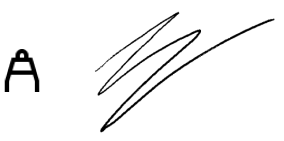
The ballpoint pen is great for:
- Writing notes
- To-do lists
- Journaling
Fineliner
The fineliner provides a rounded, even stroke with the same thickness on the display, regardless of the angle that you hold your Marker. The annotator’s best friend.
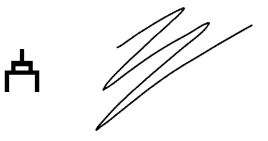
The fineliner is great for:
- Adding annotations to PDFs or ebooks
- Scheduling your time using our planner templates
- Refining your drawings
Marker
The marker has different line textures depending on the pressure and speed you write with.
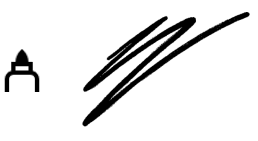
The marker is great for:
- Writing bold notebook headers
- Making cover pages for notebooks
- Creating shapes in mind maps
Pencil
The pencil functions much like a traditional pencil when drawing or writing. It responds to the amount of pressure and tilt you use, changing the thickness of the line being drawn on the display. Use lighter or firmer pressures and draw several layers to create shading when sketching on your paper tablet.
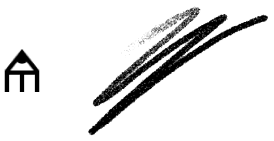
The pencil is great for:
- Taking quick notes
- Sketching and drawing
- Adding new layers to your artwork
Mechanical pencil
The mechanical pencil features the same continuous stroke thickness while drawing or writing, regardless of how you hold the Marker.
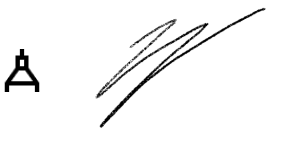
The mechanical pencil is great for:
- Drawing precise lines
- Writing equations
- Checking off your task list
- Paintbrush
The paintbrush is sensitive to the speed and pressure you apply to the display and will respond accordingly. For example, a lighter pen stroke will be thinner than a heavier one, while moving the Marker more quickly will give a lighter texture. A slower, heavy stroke will produce a thicker line.
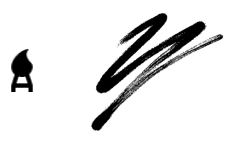
The paintbrush is great for:
- Drawings and illustrations
- Adding depth to sketches
- Adding a dark background layer
Highlighter
The highlighter lets you highlight text in PDFs, EPUBs, or in your own notebooks.
When highlighting typed text, you can choose to have the stroke snap to the text. Find this option by tapping the highlighter, then toggle Snap to text on or off.
Highlight entire paragraphs by drawing a diagonal line through the text in your notebooks and documents.
You can also choose whether you want highlighted areas to appear in color or grayscale when sharing documents via email.
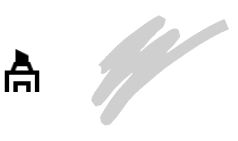
The highlighter is great for:
- Making headings that stand out
- Highlighting key points in PDFs
- Underlining passages in ebooks
Calligraphy pen
The calligraphy pen is perfect for adding an extra flourish or style to your handwriting, and for working on your cursive. It’s sensitive to direction, which means as you write, the line’s shape and thickness will change based on the Marker’s up and down strokes.
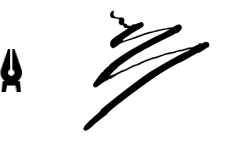
The calligraphy pen is great for:
- Practicing your handwriting
- Adding personality to your notes
- Writing eye-catching titles
Shader
The shader is great for drawing, sketching, and adding emphasis to your notes. When drawing, you can also blend and layer colors. This writing tool is only available on reMarkable Paper Pro.
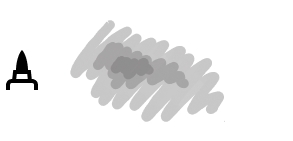
The shader is great for:
- Adding layers of depth to your drawings
- Coloring your sketches
- Adding visual elements to notes